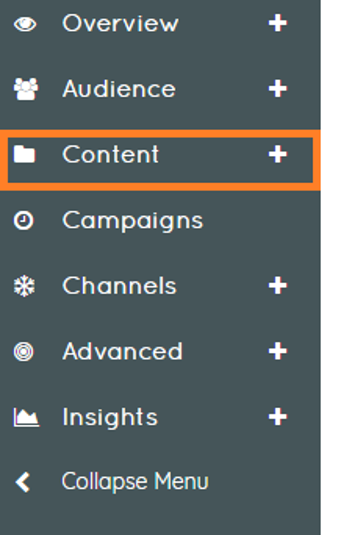
Content
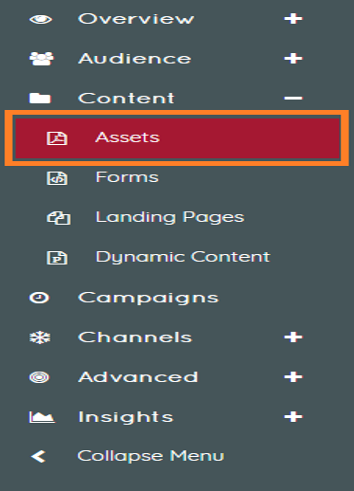
Assets
Assets are those items which you will provide to your contacts typically upon completion of a form. These assets are tractable items and can carry their own point values, history, and tracking statistics.
Example Assets
A few common examples of assets include:
- A white paper provided in regards a particular product or service.
- A downloadable demo application or other digital product.
- Any file of interest to the contact such as video, mp3, presentation, etc.
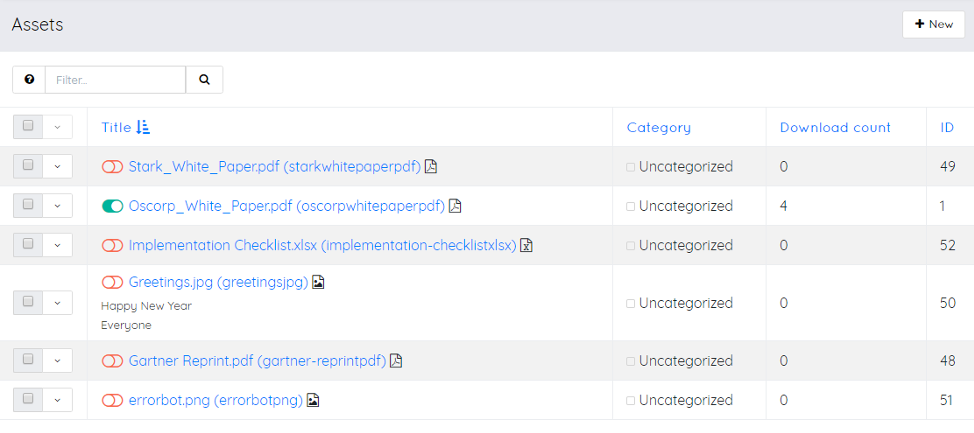
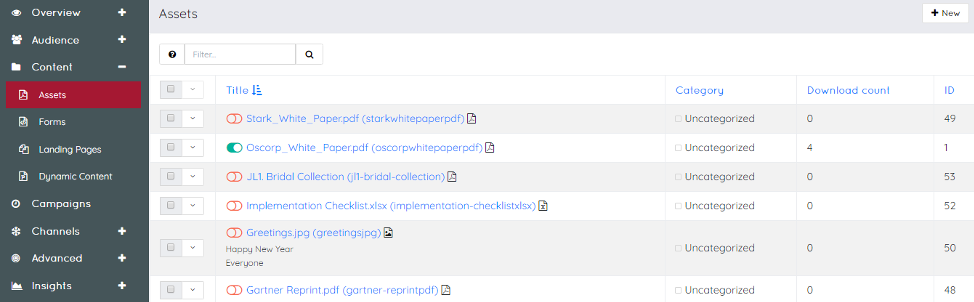
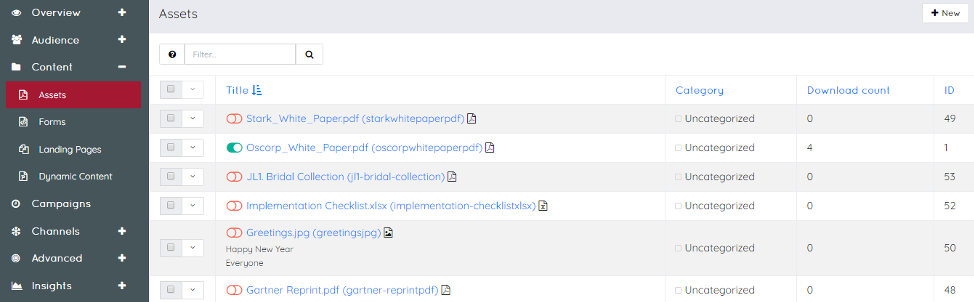
The following information are displayed on the asset page
- Title
- Category
- Download count
- Id
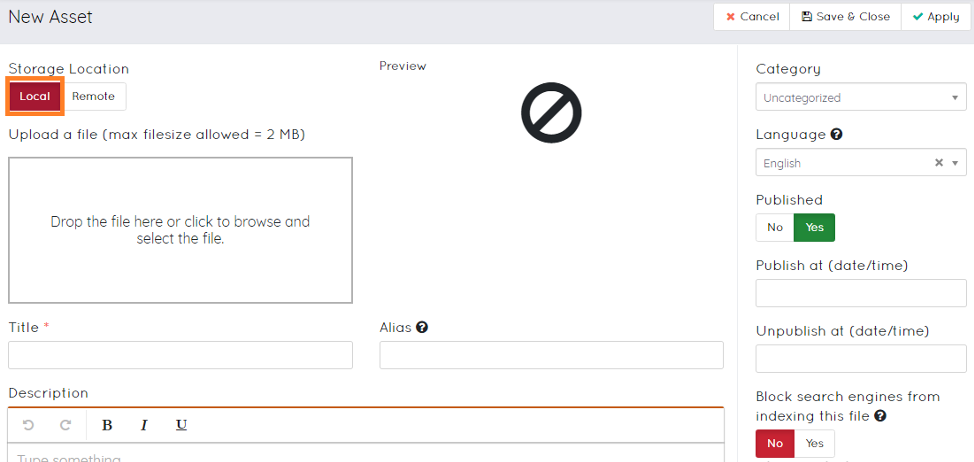
How to create new assets
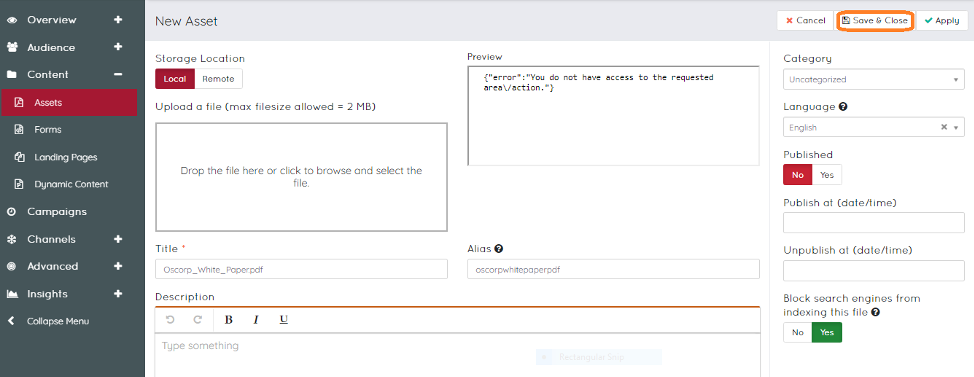
- Click new tab
- Fill the information
- Storage location(local/remote)
- Title
- Alias
- Description
- Category
- Language
- Published
- Published at (date/time)
- Unpublished at (date/time)
- Upload file
- Block search engines from indexing this files
- Save file



Deleting assets
Assets can be deleted based on three ways.
- Delete the entire list of assets.
- Delete multiple selected list of assets.
- Delete individual assets list.
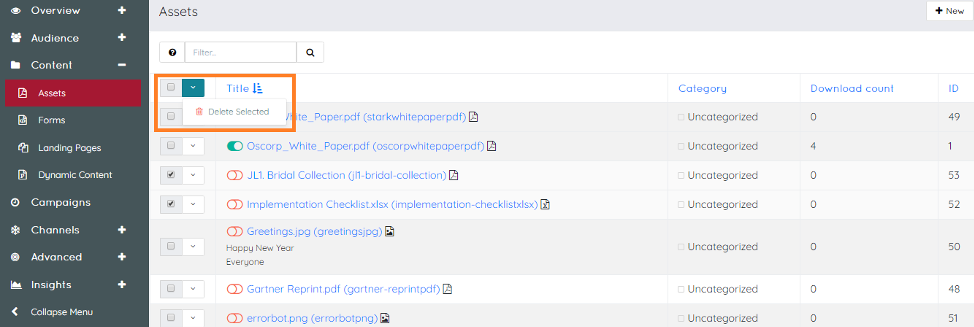
Deleting entire list of assets – Click on the topmost checkbox it will select the entire list of assets and click on the drop down list and from the drop down list select the delete option this will delete the entire list of assets.


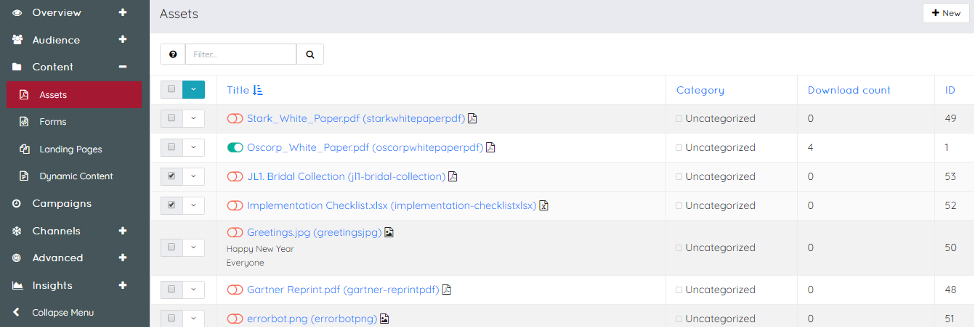
Delete multiple selected list of assets -Click on the checkbox associated with the assets that needs to be deleted and then click on the drop down arrow to select the delete option.
Delete individual assets
Select the checkbox associated with the assets that needs to be deleted and the click on the drop down list and then click on delete option.
Preview assets
To preview assets select the checkbox associated with the assets and from the drop down list select the preview option.


Clone assets
Assets can be cloned by clicking on the checkbox associated with the assets and then click the drop down arrow and select the clone option and this will take to the new assets section.


Fill the following information
- Storage location
- Update a file
- Preview
- Title
- Alias
- Description
- Category
- Language
- Published
- Publish at (date/time)
- Unpublish at (date / time)
- Block search engine from indexing this file.
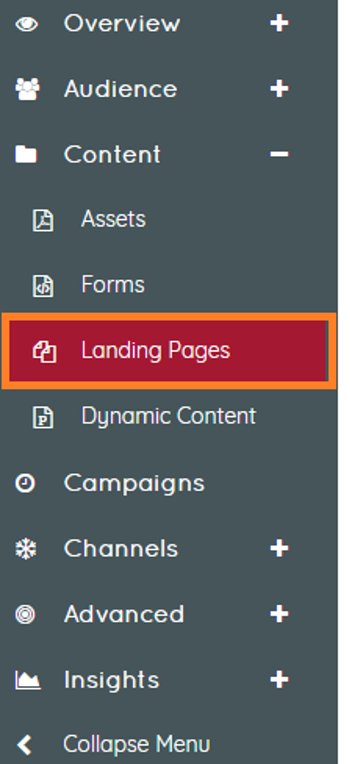
Landing Pages
Pages within CampAct are a powerful tool for quickly creating compelling content with a single focus. Use pages for directing contacts through a form or providing a way to download an asset, or merely tracking interest in a particular subject.
Features of landing pages
There are many great features with CampAct landing pages. These pages allow you to create an A/B testing environment (more on this later), multilingual pages, and template pages unique to a variety of pre-defined templates.
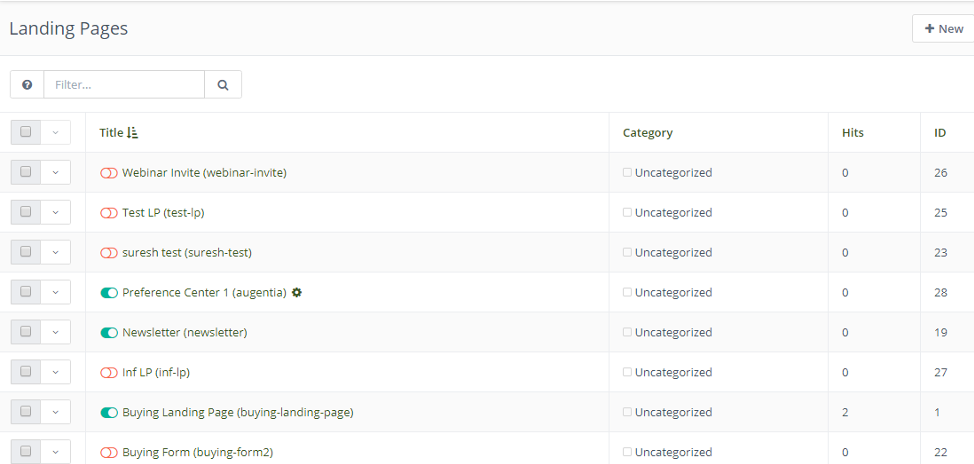
The following information are displayed on the landing pages.
- Title
- Category
- Hits
- Id
How to create landing pages
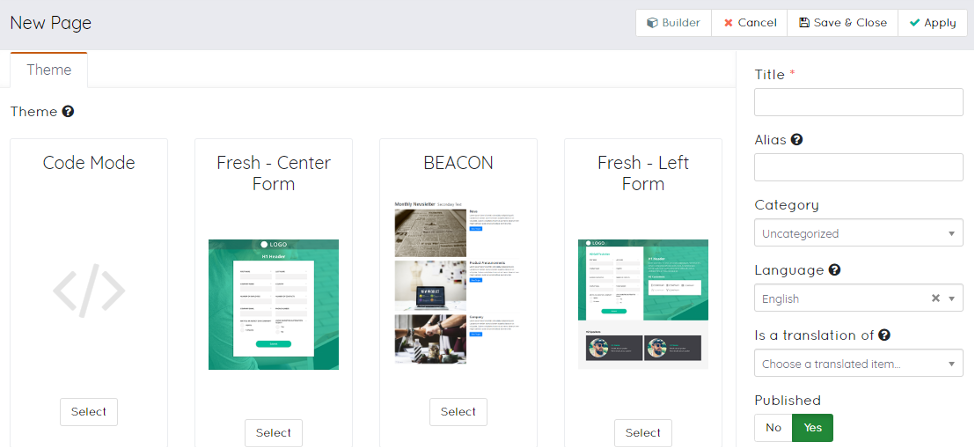
- Click new
- Fill the following information
- Title
- Alias
- Category
- Language
- Is a translation of
- Published
- Is preference centre
- Published at (date/time)
- Unpublished at (date /time)
- Redirect type
- Disable search indexing
- Meta description
- Choose a theme(optional)
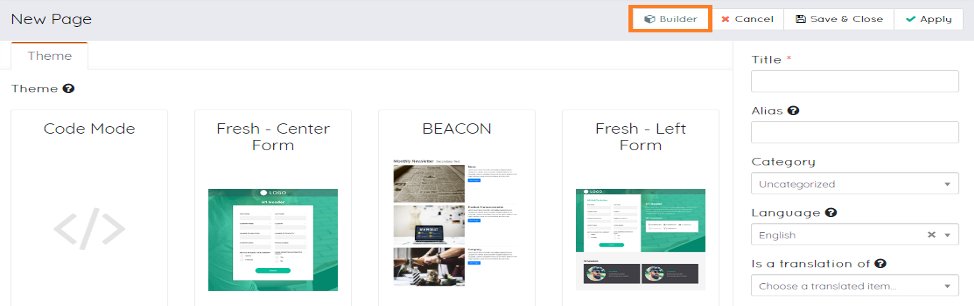
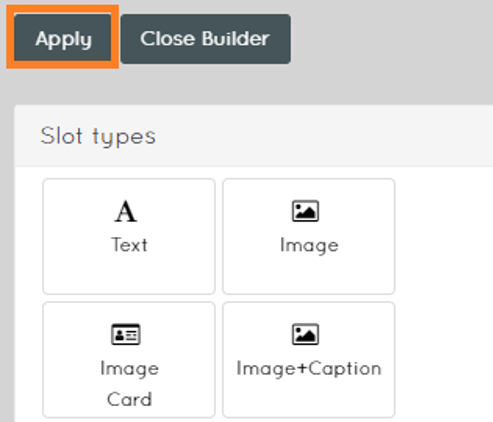
- Click on the builder.
- Choose slot types
- Selection types
- Customize slot
- Customize section
- Click apply



Delete landing pages
Deleting landing pages can be done by three ways
- Deleting the entire list of landing pages.
- Deleting multiple selected list of landing pages.
- Deleting individual landing pages.
Deleting the entire list of landing pages- this can be done by clicking on the checkbox at the top and this will select the entire list of landing pages and then from the drop-down list select the delete option.
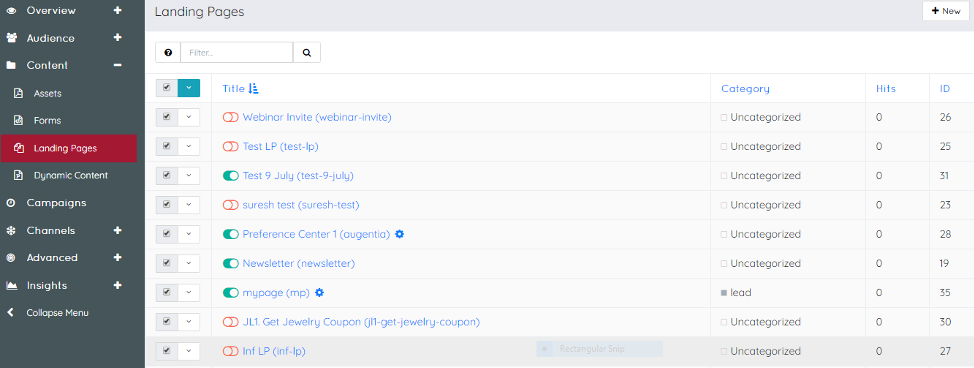

Delete multiple selected list of landing pages- Select the checkbox associated with the landing pages that you need to delete and then click on the drop down at the top and click on delete selected

Deleting individual landing pages – To delete individual landing pages select the checkbox associated with the landing page and from the drop down select the delete option.


Clone landing pages
To clone a landing page select the checkbox and then from the drop-down click on the clone option this will open the new page option and then fill the following information.
- Title
- Alias
- Category
- Language
- Is a translation of
- Published
- Is a preference centre
- Publish at date/time
- Unpublished at date /time
- Redirect type
- Disable search indexing
- Meta description
Click on Save and close


Published and unpublished landing pages
Published landing pages- This indicates that the landing pages have been put to use for sharing and collecting user information. Published landing pages are indicated by green symbol.


Forms
Forms are a special part of the marketing automation system. A form is used to collect user information often in exchange for providing access to a download, an event registration, or an email newsletter. Forms allow you to collect contact data and add additional information to their profile.
The following information is displayed in the forms page

- Name
- Category
- Results
- Id
How to create forms
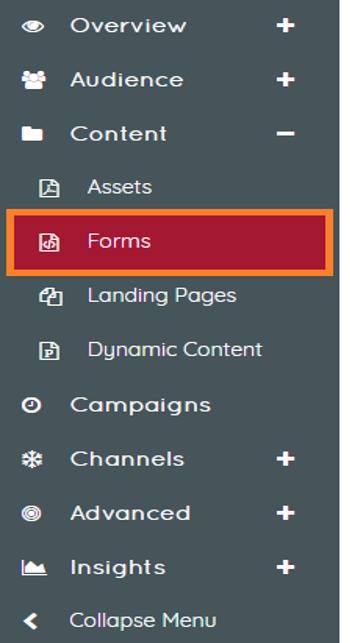
- Click on forms from components
- Click on new tab
- Select Campaign form or Standalone form
- Fill the information in a) details tab b) fields tab c) action tab
- Click add
- Save and close


Campaign form-Campaign forms can be selected to be the source of contacts when building a campaign. Some submit actions may not be available. Standalone form-Standalone forms are not restrained to campaigns and can have all submit actions configured directly within the form.
Step4- Details Tab
Fill the information in the details tab
- Name
- Description
- Successful submit action
- Redirect URL /Message
- Category
- Published
- Published at (date/time)
- Unpublished at(date/time)
- Kiosk mode
- Render style

Step5- Fields Tab
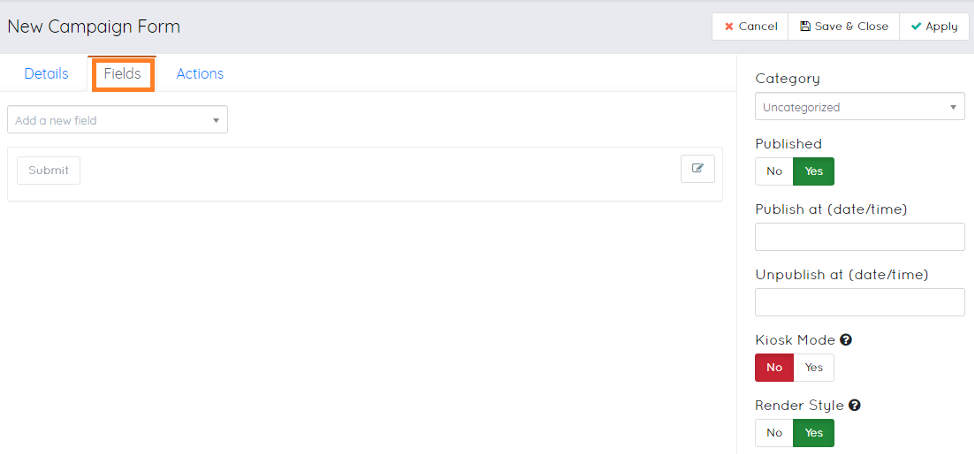
- Click on field tab.
- Choose a field from the drop down list (in the example we have selected checkbox).
Fields Tab
Step6-General Tab
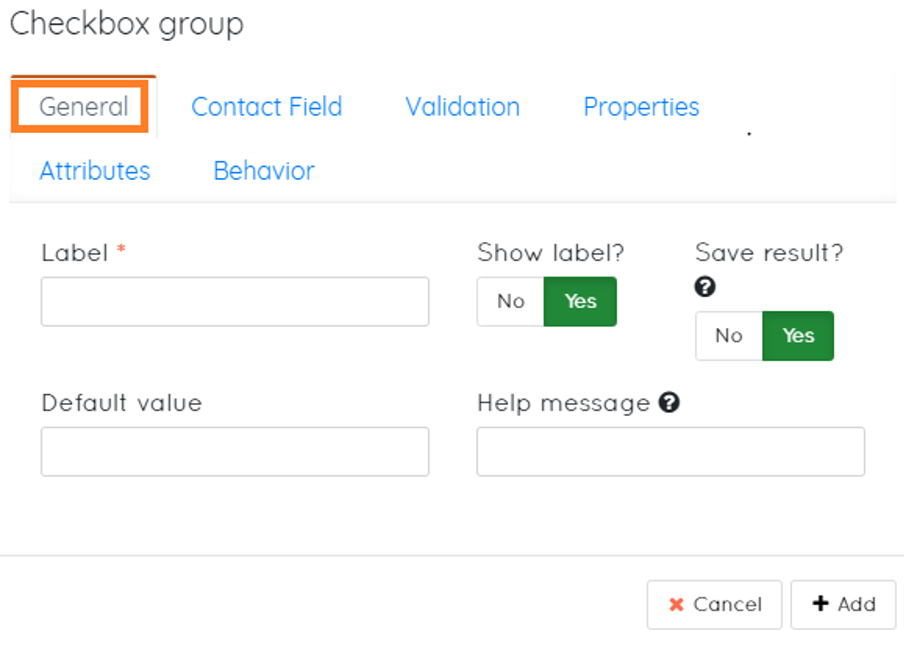
Fill the information in the general tab.
- Label
- Default value
- Show label
- Save result
- Help message
- Click add
Step7-Contacts Field Tab.

- Click on the contact field
- Choose a contact field from the drop-down.
- Click on add.


Option list - Add a value.

- Click on the Properties tab.
- Click on add a value.
- Create a label and give values.
- Click on add.
Step10-Attributes Tab

Click on attributes tab.
Fill the information.
- Field html name.
- Label attributes.
- Input attributes.
- Radio /checkbox label attributes.
- Label attributes.
- Field container attributes.
- Click Add.
STEP11-Behavior tab.

Click on behaviour tab.
- Show when value exits.
- Autofill data.
- Show after x submissions.
- Click on add.
STEP12-Actions tab.

- Click on action tab.
- Select an action from the drop-down(we have selected download an asset for the example).


Step 1- Fill the information in the details tab.

Fill the information.
- Name of the standalone form.
- Description.
- Successful submit action.
- Redirect URL/Message.
- Category.
- Published.
- Published at(date time).
- Unpublished at(date/time).
- Kiosk mode.
-
Render style.
-
New category can be created
- Click on the dropdown of category.
- Fill the information.
- Click save and close.


Clone forms

Preview forms

Delete forms
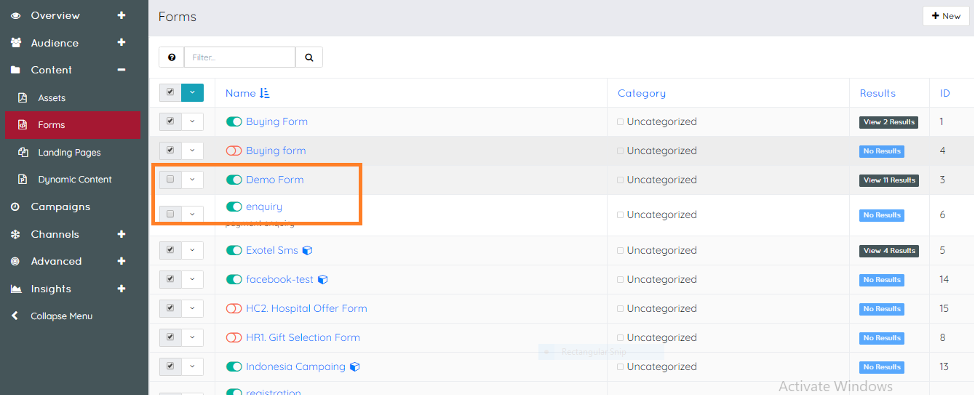
To delete forms click on the checkbox at the top and this will select a the entire list of the forms and click on the drop down and select delete selected from the option this will delete the entire list of forms. Manually by unchecking the checkbox associated with the forms that are not to be deleted and this now select the delete option from the list this will delete the selected forms.
Rebuild cache

Form results
Results contain the following information about the forms.
- Submission id
- Contact id
- Date submitted
- Ip address
- Name
- Description
Steps to view the results page
- Click on the view results adjacent to the forms to view the results page.


Alternative way to view the results page.
- Click on the checkbox associated with the forms about which the results need to be displayed.
- Click on the drop down arrow and from the drop down option click on the results tab.
- Results page will get displayed.


Delete Results- Select the topmost checkbox this will select the entire list of results and the click on the drop down menu and then select the delete option to delete the results.


Edit forms
Assets can be edited by two ways
First method – Click on the checkbox associated with the forms and then click on the drop down menu and selects the edit option and this will redirect to the edit page.


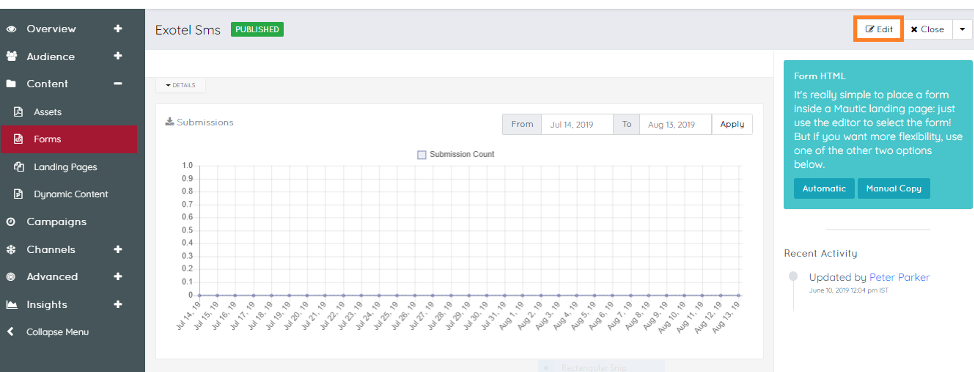
Second method – Click on the forms that needs to be edited and this will open the details section of the forms and then click on the edit button to edit the forms.


Export form results
In the results page the option of exporting the form is available.
The following types of export are available in the results page
- Export to csv
- Export to excel
- Export to html

Published and unpublished form
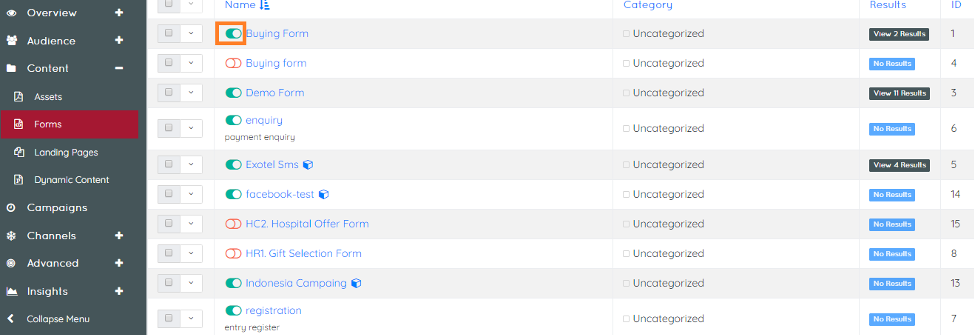
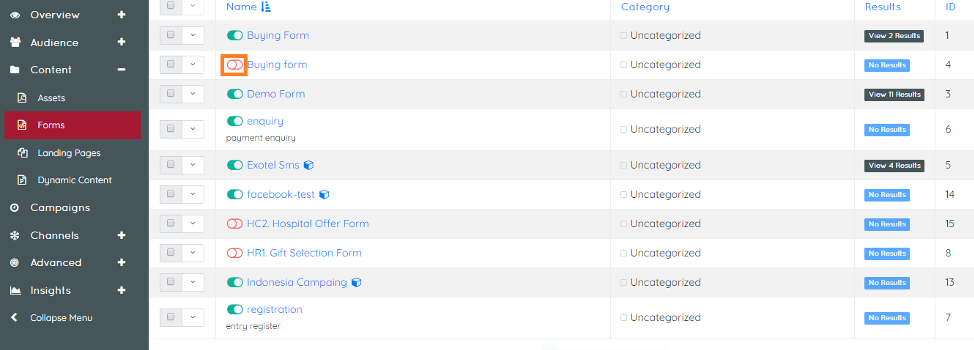
Published form- This indicates that the form has been put to use in the website or landing pages to collect user information. Published forms are indicated by green symbol.